WaterStation Operation
WaterStation operation and operating status.
- WaterStation can be operated with different media.
- WaterStation lamps show operating and fault status.
Restart After Stop or Pause
If a water outlet has stopped or is paused, broad local access such as aKey/RFID or phone/voice selection does not automatically start that paused water outlet.
If an operator deliberately selects the same water outlet in Emiko/App/Web, the equipment can try to open it again when normal authorization and product checks pass.
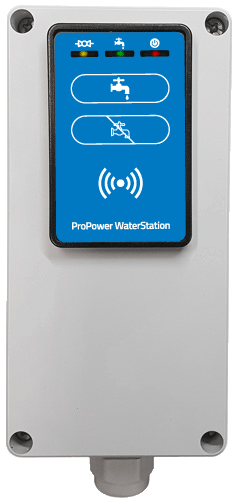
Control Box
The control box is used to open and close the water supply.
- One water outlet can be operated from the control box.
Open the water supply:
Connect the hose and open the tap.
Press the top button.
Hold an aKey key or RFID card over the reader, or call the telephone number shown on the control box.
The water supply is now open.
Close the water supply:
- Press the bottom button.
- The water supply is now closed.
- Close the tap and remove the hose.
Note that only one control box/water outlet can be operated at a time.
Read the full explanation here.Read the full explanation here.
Open the water supply:
Connect the hose and open the tap.
Press the top button.
The green lamp starts flashing.
Use one of the following options to gain approval to open the water supply:
Complete the verification within the configured time.
If the time expires, the green lamp switches off and you must start again.
Call the telephone number shown on the control box.
If you are registered as a customer for OrdreManager, you will receive an SMS.
Reply to the SMS within 2 minutes with the required requisition number.
- The yellow lamp flashes while the water supply is opening.
- The green lamp lights steadily.
- When the yellow lamp lights steadily, the water supply is open.
- If you are registered as a customer for ServiceInfo, you will receive an SMS confirming your order.
Close the water supply:
- Press the bottom button.
- The yellow lamp flashes while the water supply is closing.
- The green lamp switches off and the purchase is completed.
- When the yellow lamp switches off, the water supply is closed.
- Close the tap and remove the hose.
- If you are registered as a customer for ServiceInfo, you will receive an SMS confirming completion and stating the consumption.
| Lamp | Explanation |
| Yellow off | The water outlet is closed or set to pausepause |
| Yellow flashing | The water outlet is opening or closing. |
| Yellow on | The water outlet is open. |
| Green flashing slowly (0.5 / 0.5 second) | The control box is active and the water outlet is ready to be opened. |
| Green flashing quickly (0.1 / 0.1 second) | Waiting for an SMS reply with the requisition number if this feature is enabled for the user. |
| Green on | The user is approved. |
| Red flashing | System fault. |
| Red on | System busy. Wait until it is available. |
OrdreManager
OrdreManager is used when the customer needs to enter a requisition number that is registered together with the purchase of, for example, electricity or water.
Operating principle:
- On the equipment, select the outlets to be activated.
- For example, select power outlets 1 and 2 on the equipment.
- Call the phone number shown on the equipment.
- When you are approved, the system ends the call and sends an SMS.
- Reply to the SMS with the required requisition number, typically within a few minutes.
- If the time expires, the previous selection is cancelled and you must start again.
- When the system receives the SMS with the requisition number, it switches on the selected outlets.
- The system then links the consumption to the specified requisition number, for example in reports.